![Trint_Logo-no-padding.png]](https://info.trint.com/hs-fs/hubfs/Trint_Logo-no-padding.png?height=40&name=Trint_Logo-no-padding.png)
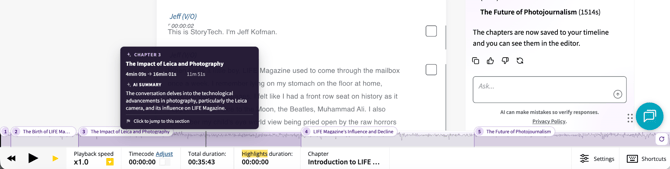
Navigating your transcript just got easier with chapters. Especially useful on longer transcripts, chapters automatically split a transcript into sections, each with a title and a one-sentence summary, so you can see the shape of a recording at a glance and jump straight to the part you care about.
This support guide will cover:
How do Chapters work?
Chapters are generated for every uploaded file, and for every live recording, once the live has finished. If the split isn’t quite right, you can ask the AI Assistant to regenerate the chapters, giving it some more direction or specific instructions to follow.
The chapter markers show on the waveform by default, however you can hide these by going into the Settings tab (from the footer next to the waveform or in account settings).
When hovering over the chapters on the waveform bar you can see the title and summary of the chapter, along with timecodes and the duration of the chapter.
Benefits of using Chapters
The key benefit of chapters to chapters is in helping you get around a long transcript without having to read every section. For example, if you’ve attended an event and roughly remember a moment but can’t find it in your transcript, chapters can help you easily navigate to that section making your search shorter and much more efficient.
Similarly, if you’re catching up on an event and need to know whether any sections are important to you, chapters can give you a quick glance at each segment of the transcript, providing extra visibility and getting you to the words you need, faster.
Chapters give the transcript a structure. The feature means that you can work out what’s in a long recording in a matter of seconds and head straight to the bit that matters most.
How to hide Chapters
Hiding chapters from your transcripts is simple. Go into Settings and toggle the ‘Show chapters on waveform’ to off.

FAQs
- Do chapters work in every language?
Chapters are available in every language that Trint supports.
- Can I remove or edit chapters?
Chapters can’t be edited by hand, however, once generated, you can ask the AI Assistant to regenerate the chapters with some additional direction. This can include creating fewer or more chapters or creating chapters more focused on a specific topic.
- Can I hide the chapter markers?
Chapter markers show on the waveform by default, but can be hidden in Settings. This can be accessed from the footer next to the waveform or in account settings. - Can I add chapters to live transcripts?
You can use chapters on batch and Realtime Trints, however they can only be added once the transcript is complete.
- Is it safe to let Trint’s AI read my transcript?
Trint’s AI is trained externally so will never learn from your transcripts, meaning your data is always in safe hands.
We hope you have found this article useful. If you have any questions, please reach out to us at support@trint.com and our team will be happy to help.