![Trint_Logo-no-padding.png]](https://info.trint.com/hs-fs/hubfs/Trint_Logo-no-padding.png?height=40&name=Trint_Logo-no-padding.png)
Most AI tools will give you a summary, pull some quotes, and move on. What they won't tell you is whether the quote is accurate, who actually said it, or where in the recording it came from.
The Trint MCP Connector lets AI assistants like Claude and ChatGPT access your Trint account securely and safely.
An MCP (Model Context Protocol) server is an open standard that lets AI agents and assistants access external tools and data sources. The Trint MCP Connector uses this open standard, so that journalists, researchers, and media teams already working with Claude or another AI assistant, can bring Trint’s capabilities directly into their workflows, without switching context.
The AI tool does the work. Trint makes it accurate enough to trust.
This support guide will cover:
- How to set up the Trint MCP Connector using Claude
- How to set up the Trint MCP Connector using ChatGPT
- How to set up the Trint MCP Connector using Gemini
-----------------
Trint MCP Connector Set Up Guide
Claude (claude.ai)
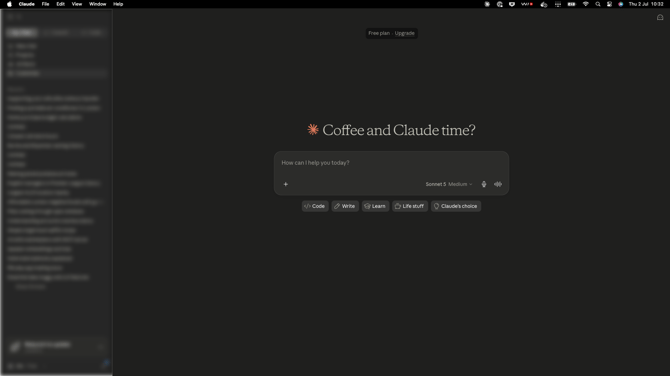
Step 1: Open Claude in the Desktop app, if installed on your machine, or online at claude.ai in your web browser. Navigate to the left sidebar and select ‘Customize’.
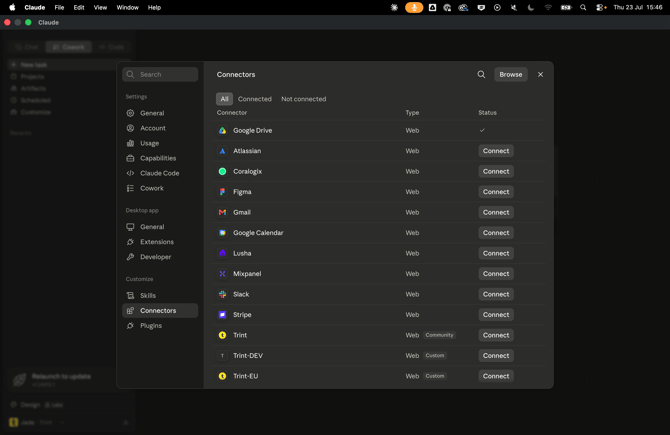
Step 2: Click on ‘Connectors’.
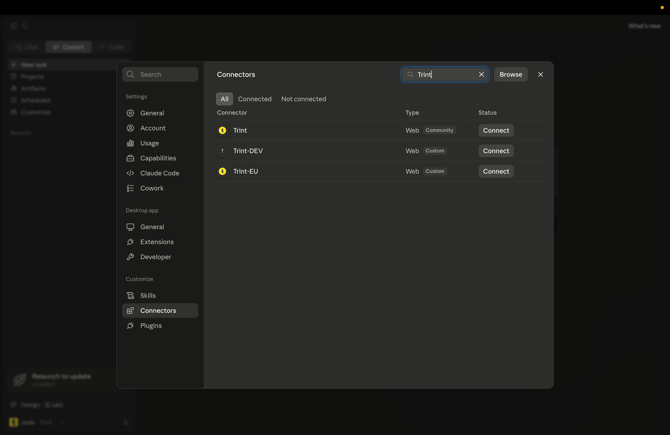
Step 3: Navigate to the 'Search connectors' button and type in 'Trint'. You will then see Trint as an option to connect. Choose the correct domain for you and press 'Connect'.
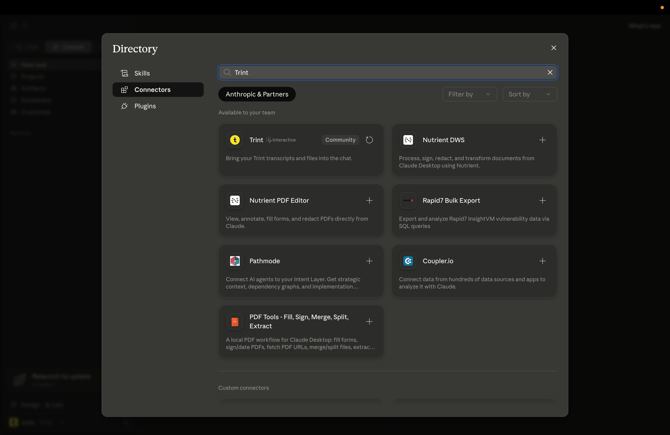
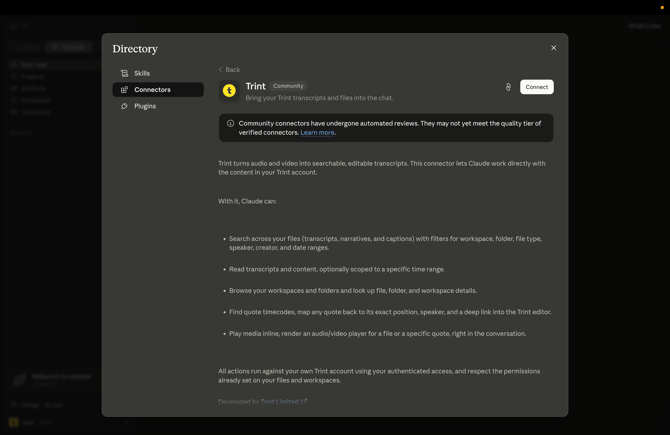
Step 4: Alternatively, you can choose to click on the 'Browse' button and search 'Trint' in the connectors directory. From here, select the Trint connector.
Step 5: Click the ‘Connect’ button. You will then be prompted to provide authentication via the Trint app.
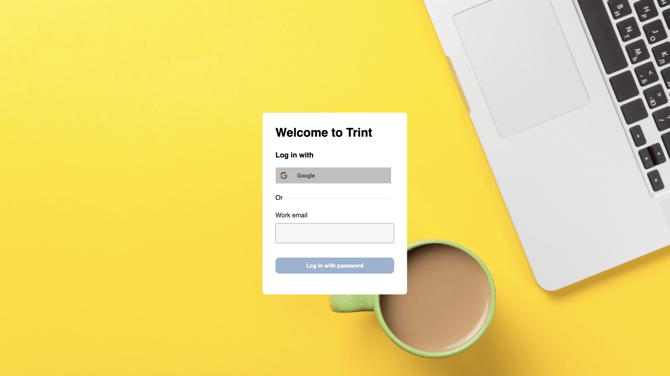
Step 6: Log into Trint as usual.
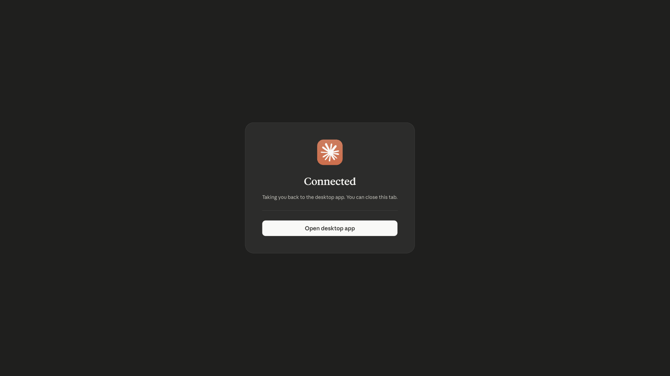
Step 7: Your Trint and Claude are now connected.
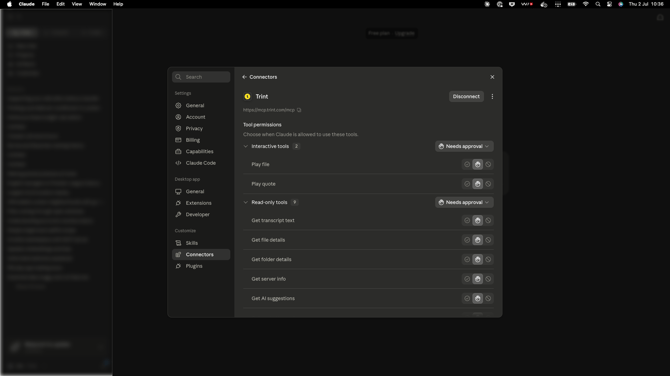
Step 8: You will now be able to see Trint in your connectors page. From here you can set permissions for each tool and customize access.
Step 9: Once your permissions have been set, you can then toggle the Trint Connector on and off in the chat page.
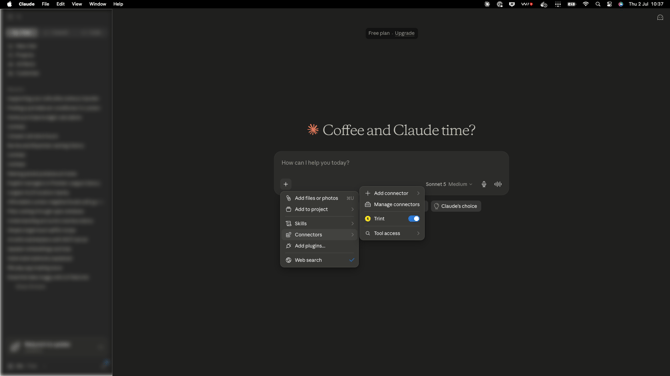
Step 10: From here, you are ready to use the Connector. Write your prompt in Claude and reference the Trints you want to use (or your whole Trint library, if you have allowed access) and let Claude work.
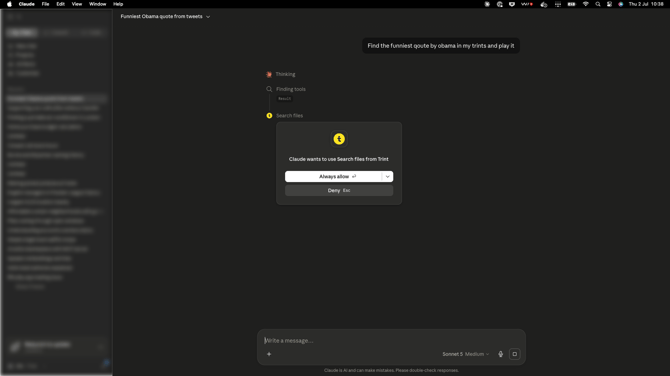
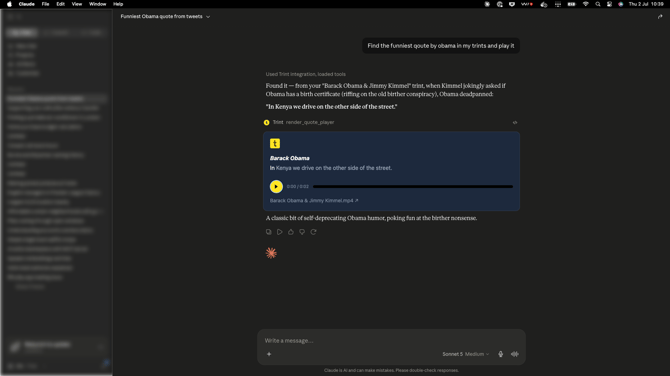
Step 11: Trint will work inside Claude actioning the prompts you put in. In the example below, you can ask it to search quotes and then render the quote player to hear the exact moment from the Trint transcript directly in Claude.
ChatGPT
Step 1: Open ChatGPT in the Desktop app, if installed on your machine, or online at chatgpt.com in your web browser. Navigate to the left sidebar, select ‘Settings’ then select ‘Apps’.
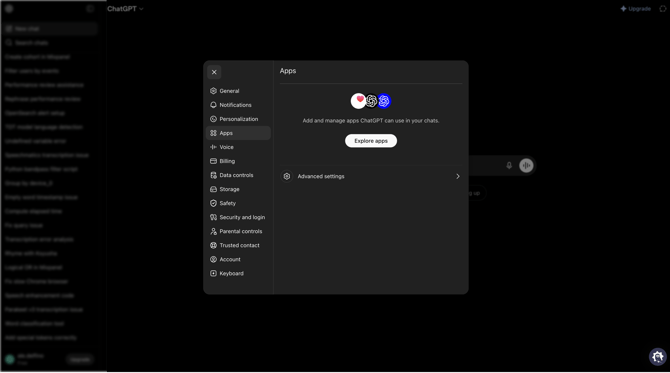
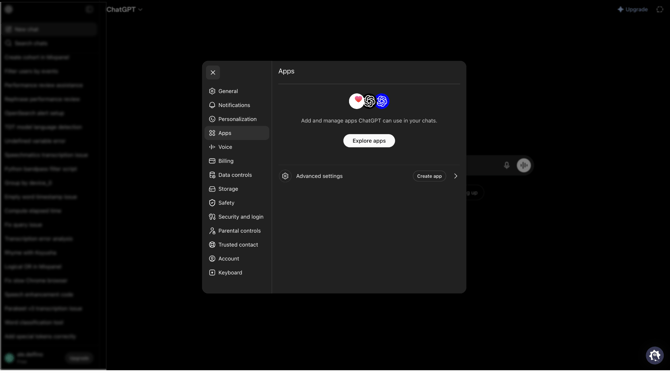
Step 2: Click on ‘Advanced settings’ and then ‘Enable Developer mode’. Then click ‘Back’.
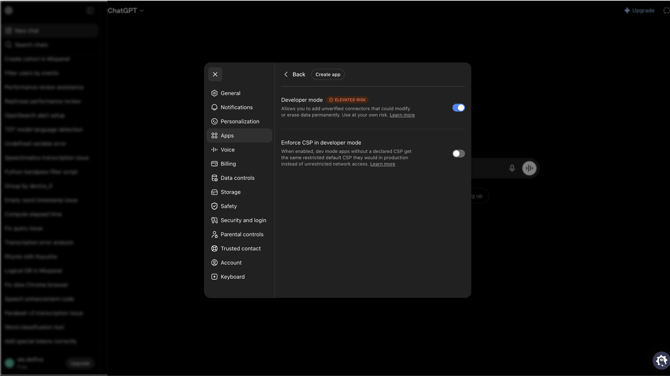
Step 3: Now you will be able to see the ‘Create App’ button that has appeared next to ‘Advanced Settings’. Click this button.
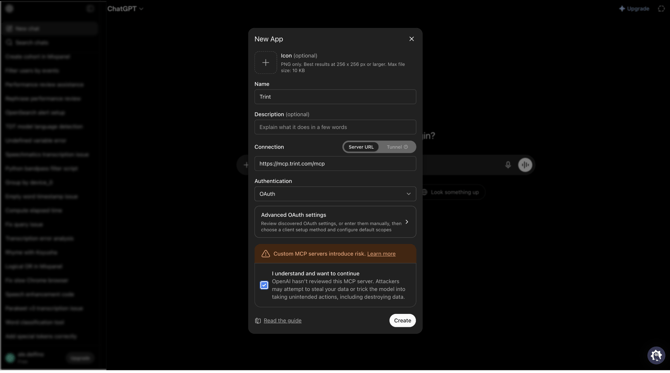
Step 4: You will now be in the ‘New App’ page. Here you can add the new app name (Trint).
Then add the Trint MCP url into the ‘Connection’ field:
- https://mcp.trint.com/mcp for enterprise customers on the US tenant and all self serve users.
- https://mcp.eu.trint.com/mcp for enterprise customers on the EU tenant.
Check the box regarding the MCP server and click on ‘Create’.
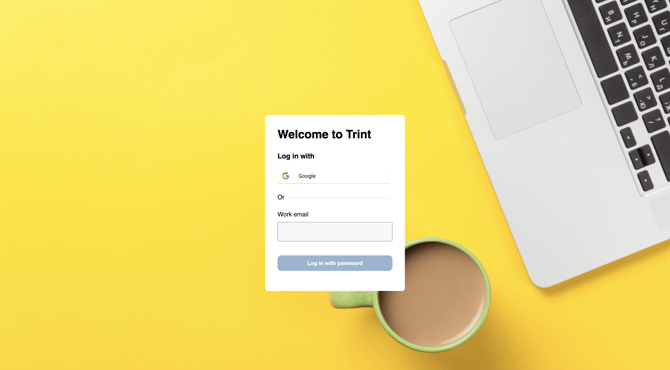
Step 5: You may need to wait a few seconds before you see a prompt like this. Click on ‘Sign in with Trint’.
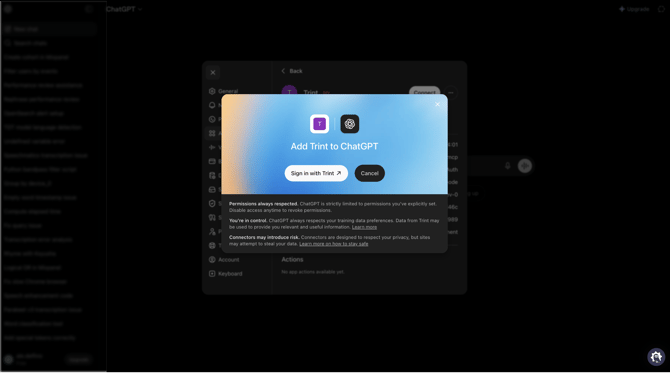
Step 6: Log into Trint as usual.
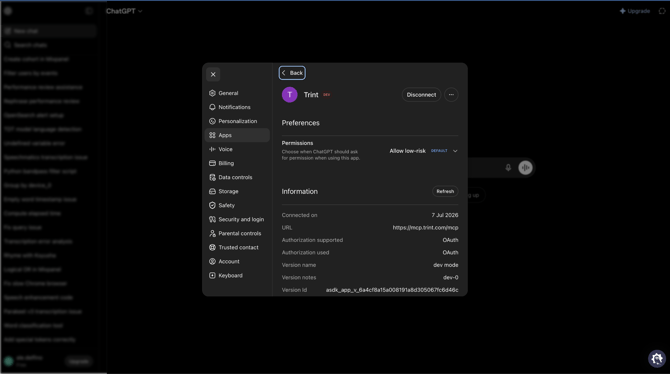
Step 7: Now your connection is complete. Navigate back to ChatGPT and open up the ‘Settings’ tab, click into the ‘Apps’ tab and you will see Trint as a connected app.
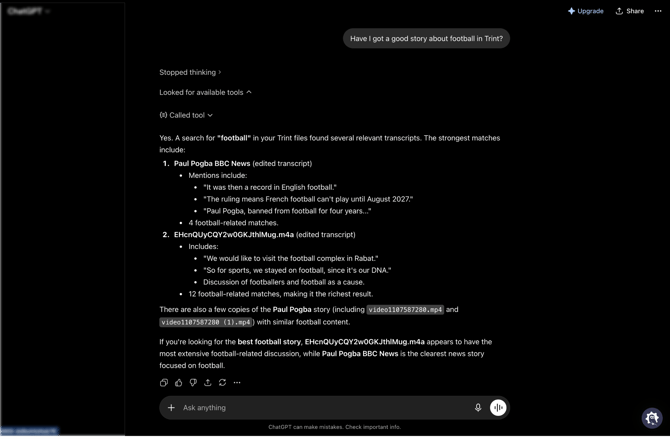
Step 8: You can now use ChatGPT to search Trint, read Trint files, render quotes in the quote player and more.
The guide for how to set up the Trint MCP Connector with Gemini is coming soon.
Keep an eye out for what’s next with the Trint MCP Connector. We will be adding updates to this page so make sure to check back for more information or speak to your customer support manager.
If you have any questions or difficulties setting up your Trint MCP Connector, please contact your Trint customer support manager.
-----------------
We hope you have found this article useful. If you have any questions, please reach out to us at support@trint.com and our team will be happy to help.